Soundboard
Drop in your own files or start with the 12-sound starter pack. Tap a pad to hear it.
The soundboard for Windows
Give every sound a hotkey, mix your mic and effects separately, and play it straight into Discord.
Sounds are generated in your browser. The mic meter is simulated; no microphone access is requested.
Built for playing sounds mid-game, on calls and on stream, without slowing anything down.
Drop in your own files or start with the 12-sound starter pack. Tap a pad to hear it.
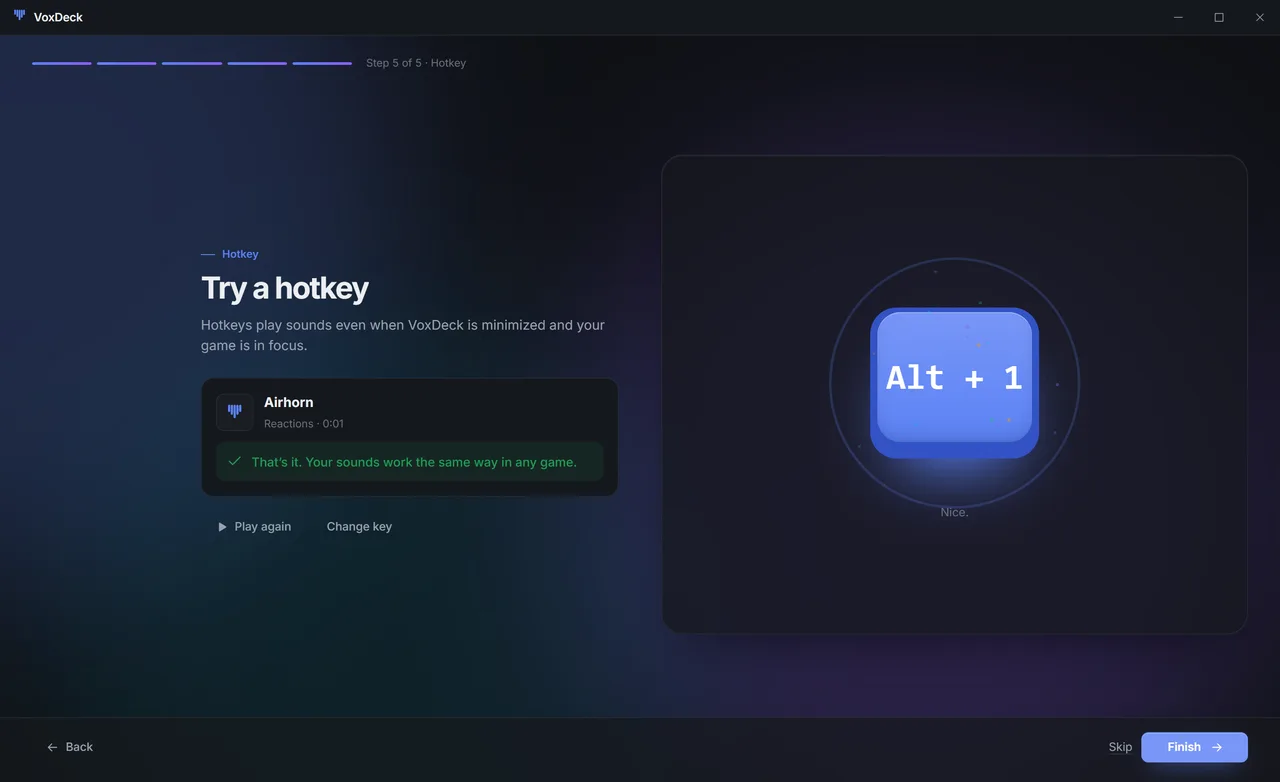
Play sounds while your game is in focus.
Mic, effects, headphones and voice chat each get a fader.
Save a mix for each situation. Switch in one click.
Press Ctrl K, type a name, hit Enter.
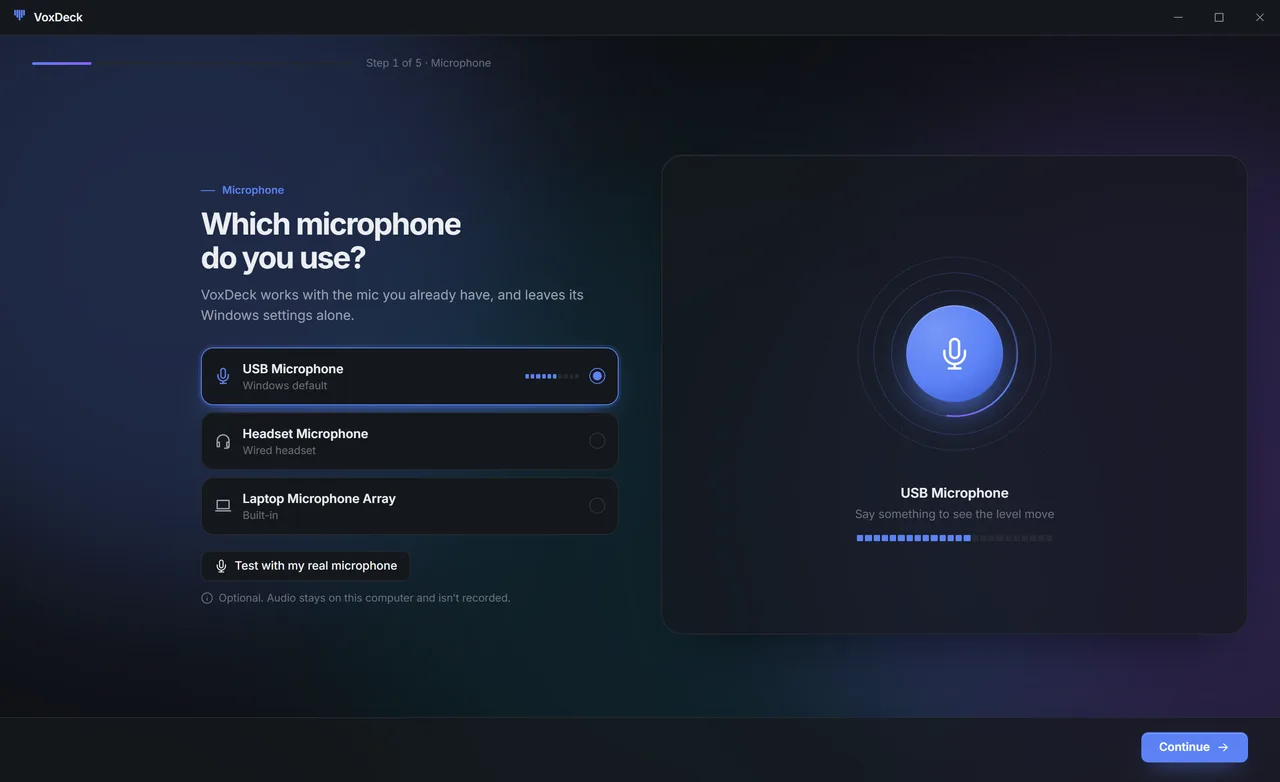
Works with the mic you already have. No Windows changes.
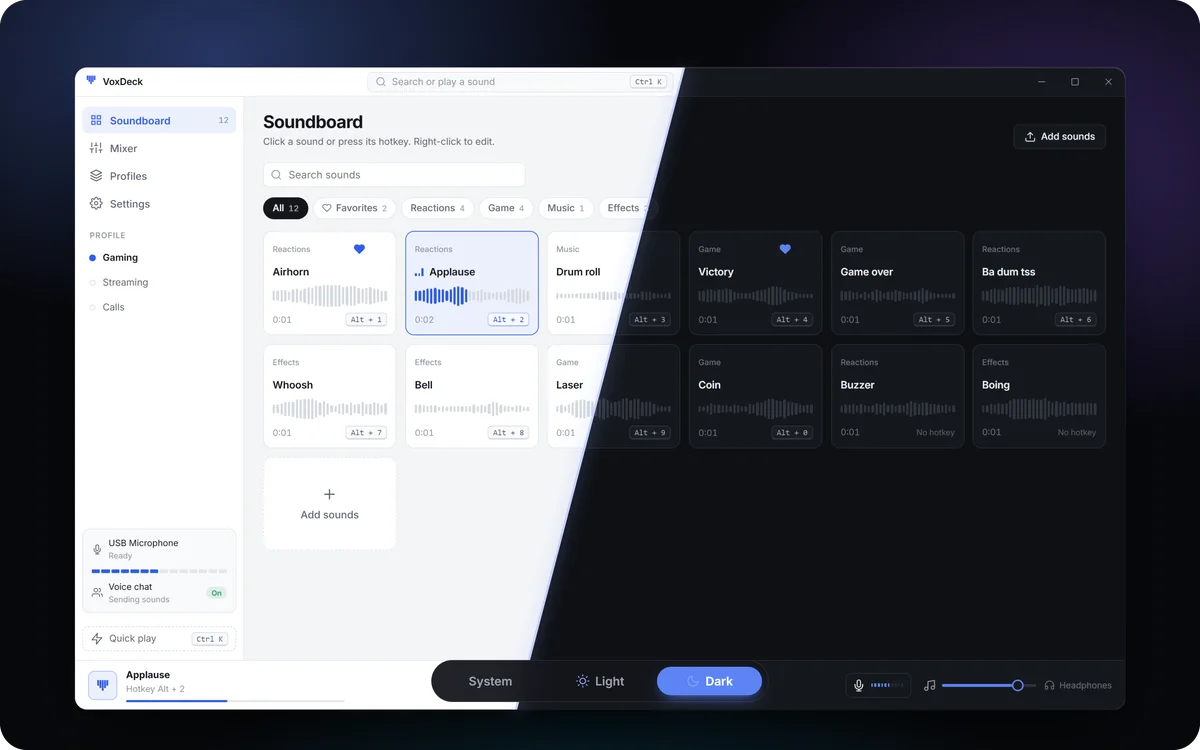
Follows Windows, or pick the one you like.
How it works
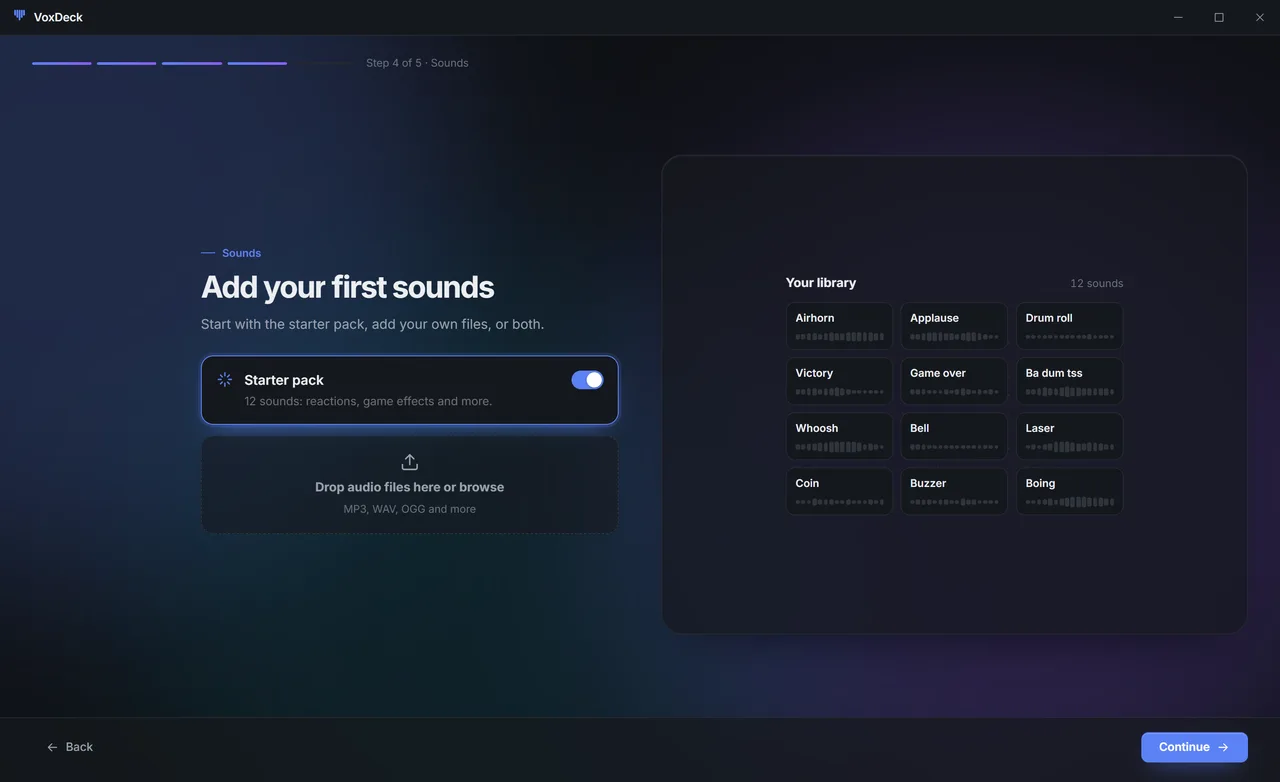
Drag audio files into VoxDeck. They land in your library, ready to play.
Pick a sound and press a key. That's the whole setup.
Set your voice and your effects to the levels you want. Keep scrolling to move the faders.
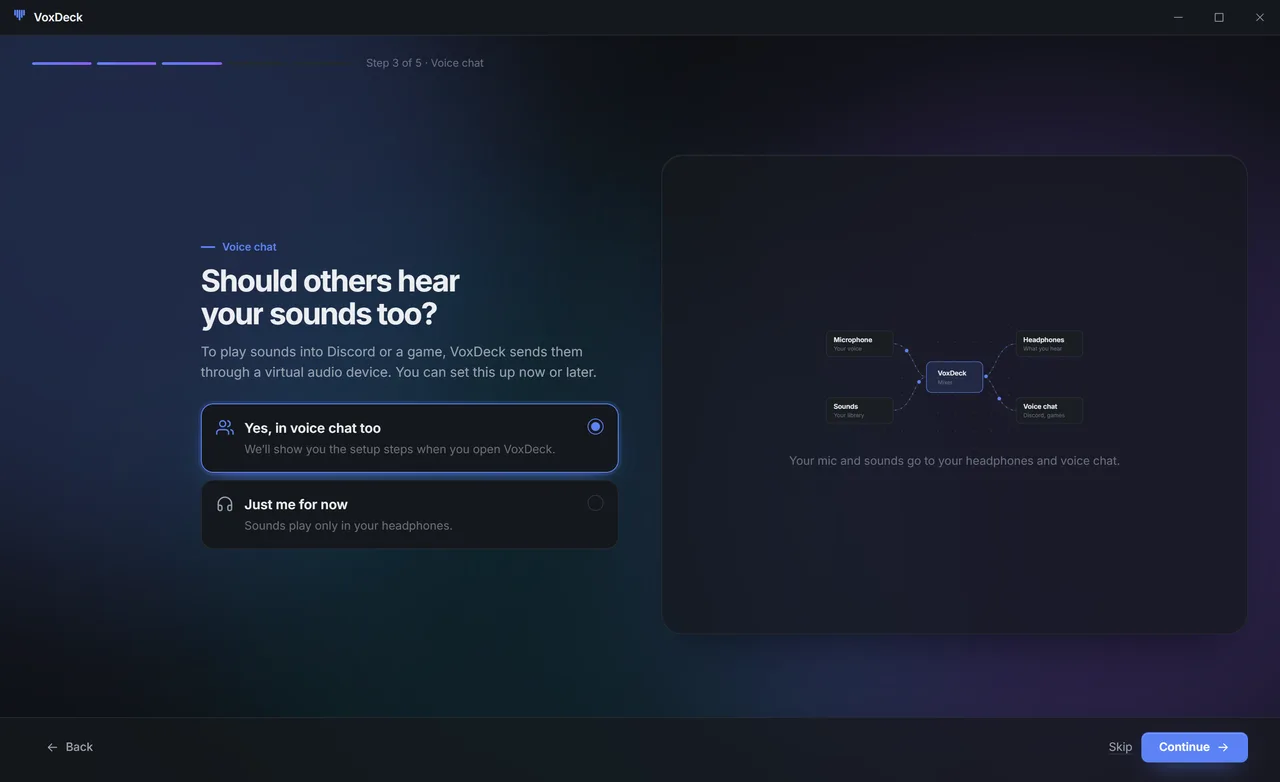
Hear it in your headphones, and send it to Discord or a game through a virtual audio device.
Your friends hear every sound in the voice channel while you keep playing. Turn the sound on in the clip.
VoxDeck sends your mic and sounds through a virtual audio device. Pick it as your mic in Discord.
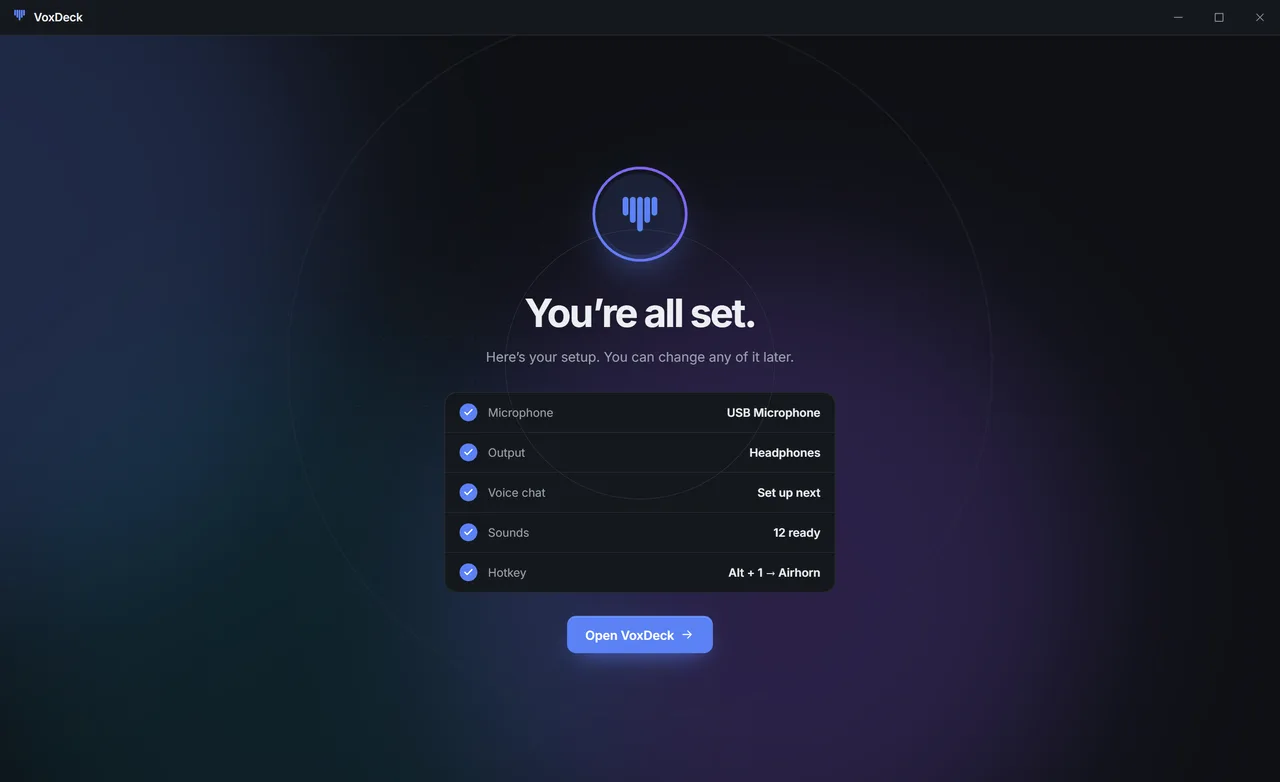
No account needed. A short setup finds your devices and gives you a first hotkey to try.
One installer, no account.
The level meter shows it's working.
Your first hotkey is ready to try.
Something else on your mind? Ask in the VoxDeck Discord.
Yes. Hotkeys play sounds even when VoxDeck is minimized and your game is in focus.
Yes. VoxDeck sends your mic and sounds through a virtual audio device. Pick that device as your microphone in Discord or your game, and everyone in the channel hears them.
MP3, WAV, OGG and more. Drag them onto the window or use Add sounds. A 12-sound starter pack is included.
No. Install it and start playing sounds.
No. VoxDeck works with the mic you already have and leaves its Windows settings alone.
Yes. Turn on "Play sounds over each other" in Settings. By default, a new sound stops the one already playing.
Install it, press a key, and your sounds are live in your games, calls and streams.
No account needed. Or open the full demo in your browser first.